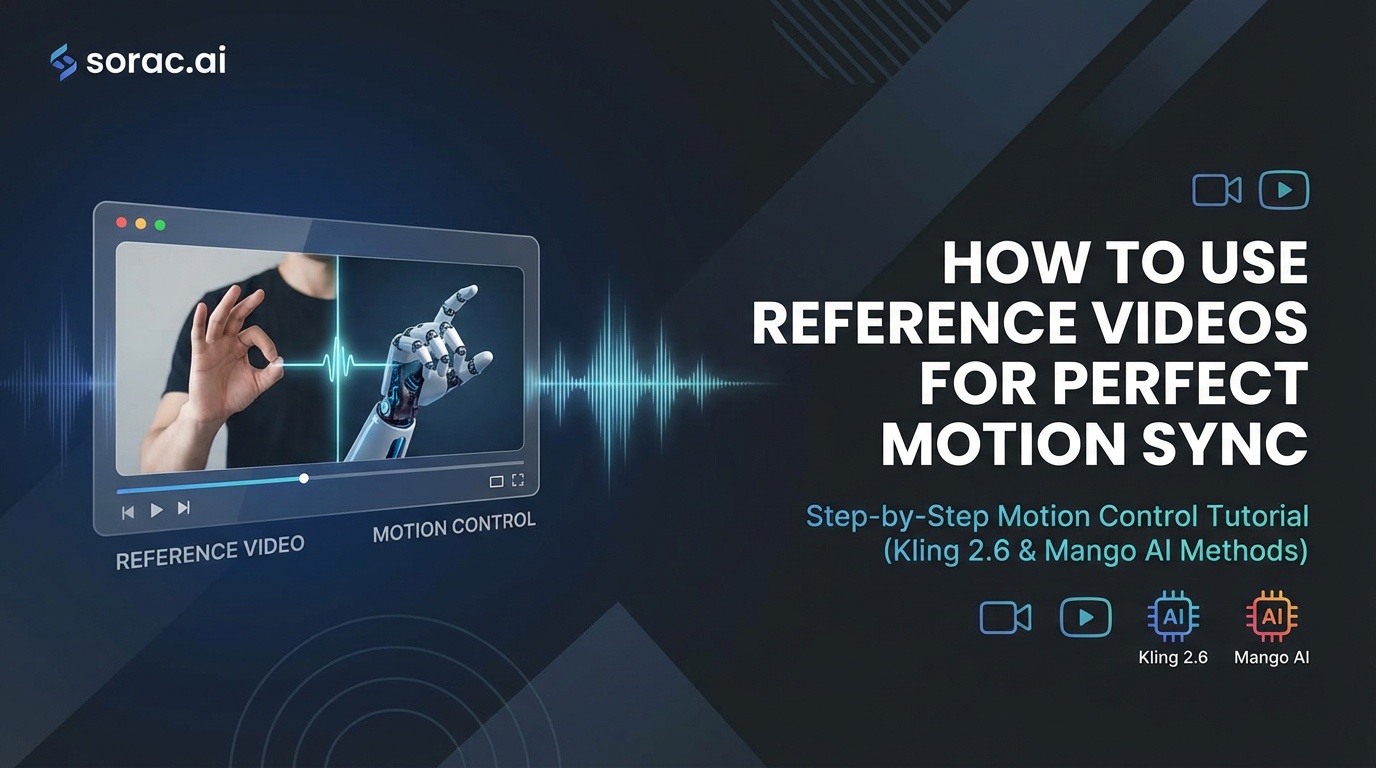
How to Use Reference Videos for Perfect Motion Sync: Step-by-Step Motion Control Tutorial (Kling 2.6 & Mango AI Methods)
Stop creating janky AI dance videos. Learn exactly how to use reference videos with Kling 2.6 & Mango AI for motion sync that actually looks real (with real examples).
How to Use Reference Videos for Perfect Motion Sync: Step-by-Step Motion Control Tutorial (Kling 2.6 & Mango AI Methods)
You've seen those insanely realistic AI dance videos flooding TikTok—the ones where someone's grandma suddenly busts out breakdancing moves or a cat does the salsa. You want in on this viral goldmine, but every time you try, your results look like a glitchy fever dream.
Here's the thing: the secret isn't just the AI tool you're using. It's all about reference video motion control—and most people are doing it completely wrong.
Let me walk you through exactly how to sync motion like a pro using the latest tech from Kling 2.6 and Mango AI's brand-new dance generator (launched literally April 1, 2026). By the end of this tutorial, you'll be creating dance videos that actually look believable.
What You're Actually Trying to Achieve
Motion sync means taking the exact movements from a reference video (someone dancing, doing parkour, whatever) and mapping those movements onto a completely different subject—your photo. When done right, it looks magical. When done wrong, it looks like your subject is having a seizure.
The goal: natural-looking motion that preserves your subject's identity while perfectly copying the reference movement.
What You'll Need Before Starting
Pro tip: If you don't have a reference video yet, platforms like Soracai offer 23+ pre-made dance templates (Hip-hop, Salsa, Robot, Rockstar, etc.) so you can skip the hunting.
Step 1: Choose Your Reference Video Wisely
Not all reference videos are created equal. This is where 90% of people screw up.
What Makes a Good Reference Video:
Video Length Sweet Spot:
Mango AI's new generator (announced April 1) accepts up to 30 seconds, but honestly? 5-15 seconds is the sweet spot. Longer videos increase processing time and error probability. The algorithms are trained on extensive datasets, but they still struggle with marathon sequences.
Pro tip: Screen-record TikTok dance tutorials or use royalty-free dance clips from Pexels. Just make sure the movements are exaggerated enough to be interesting but not so chaotic that tracking fails.
Step 2: Prepare Your Source Photo Like a Pro
Your photo quality directly impacts the final result. Here's what actually matters:
Photo Requirements:
If you don't have the perfect photo, create one using Nano Banana Pro on Soracai. Use PRO mode (4 coins) for better detail and color accuracy—it makes a noticeable difference in the final dance video. Try prompts like "full body portrait of [person/character], standing naturally, white background, studio lighting, professional photography."
Aspect Ratio Matters:
If you're making content for TikTok or Instagram Reels, shoot for 9:16 portrait. YouTube? Go 16:9 landscape. Nano Banana Pro offers 11 aspect ratios, so generate your base image in the right format from the start.
Step 3: Upload and Configure Motion Control Settings
Now we get to the actual motion sync. I'll cover both major platforms since they work slightly differently.
Using Kling 2.6 Motion Control (via Soracai):
Kling 2.6's motion control is ridiculously good at copying exact dance moves from reference videos. It uses skeletal tracking to map joint positions frame-by-frame, then applies those movements while maintaining your subject's appearance.
Using Mango AI's New Dance Generator:
Mango AI's advantage? Custom reference videos up to 30 seconds. Their April 1 launch specifically emphasized "natural flow" and "realistic motion syncing," which in my testing means better transitions between movements.
Pro tip: Start with pre-made templates before uploading custom references. Get a feel for what works, then experiment with your own videos.
Step 4: Fine-Tune Your Results (Advanced)
First attempt didn't nail it? Here's how to troubleshoot:
If Motion Looks Janky:
If Face Looks Wrong:
If Movements Don't Match Reference:
Step 5: Export and Optimize for Social Media
You've got your perfect motion-synced video. Now don't ruin it with bad export settings.
For TikTok/Instagram Reels:
For YouTube Shorts:
Pro tip: Create multiple variations using different dance templates. Post them across platforms to see which style gets the most engagement, then double down on that style.
Real-World Examples That Actually Work
Baby Dance Videos:
Upload a cute baby photo, apply the "Dance Baby" or "Shake It To Max" template on Soracai. These consistently go viral because the juxtaposition is inherently funny. Parents eat this stuff up.
Pet Content:
Dog doing ballet? Cat doing hip-hop? The motion sync works surprisingly well on animals. Use clear, front-facing pet photos for best results.
Historical Figures:
Make Einstein do the Robot dance. Make Mona Lisa hit the Griddy. Public domain images + viral dance moves = engagement gold.
Action Figure Effect:
Combine motion control with Soracai's Action Figure Creator effect first, then animate it. The toyetic aesthetic makes janky movements look intentional.
Troubleshooting Common Motion Sync Failures
"My video looks like a deepfake gone wrong"
Cause: Low-quality source photo or too-complex reference video
Solution: Regenerate your source image at higher resolution (use Nano Banana PRO), simplify your reference video to 5-10 seconds max
"The AI added extra limbs or glitched body parts"
Cause: Ambiguous pose in source photo or reference dancer going off-screen
Solution: Use a neutral standing pose in your source photo, ensure reference video keeps dancer fully visible
"Motion doesn't match the beat of my audio"
Cause: You added audio after generation
Solution: Choose reference videos that match your intended audio BPM, or adjust audio speed to match the generated video
"Processing failed or timed out"
Cause: Video too long, file too large, or server overload
Solution: Trim reference video to under 15 seconds, compress source photo to under 5MB, try during off-peak hours
The Bigger Picture: Why Motion Control Matters Now
Here's what's happening in April 2026 that makes this tutorial so timely:
Translation: Motion-synced content is about to flood social media even harder. The tools are getting better, faster, and more accessible. If you learn this skill now, you're ahead of the curve.
Your Next Steps
The motion control revolution is happening right now. Tools like Kling 2.6 and Mango AI are making it stupidly easy to create content that would've required a VFX team last year.
Stop overthinking it. Upload a photo. Pick a dance. Hit generate. You're literally 2 minutes away from your first viral-worthy motion-synced video.
Now go make something ridiculous. The algorithm is waiting.