
7 Chat Commands That Replace Video Reshoots: Buzzy's AI Video Photoshop Tricks Every Creator Needs (May 2026)
Buzzy's $20M AI Video Photoshop lets you edit videos by typing commands. "Remove that person." "Fix eye contact." Done. Here's what actually works in May 2026.
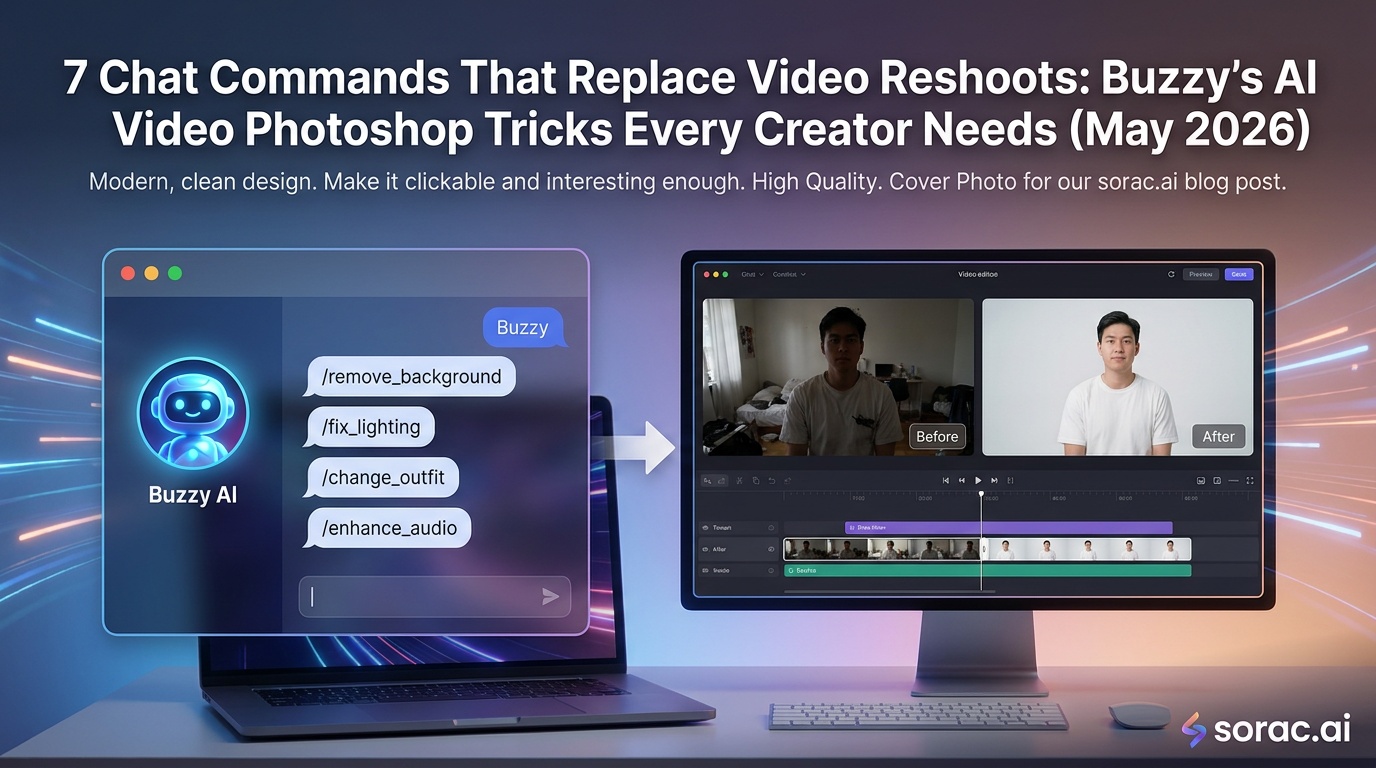
7 Chat Commands That Replace Video Reshoots: Buzzy's AI Video Photoshop Tricks Every Creator Needs (May 2026)
Remember when fixing a single mistake in a video meant reshooting the entire thing? Those days just died. On April 30, 2026, Creati Gen AI Inc. dropped Buzzy—the "world's first AI Video Photoshop"—with $20M in funding from Redpoint Ventures. The pitch? Edit videos by typing chat commands. "Remove that guy in the background." "Fix her eye contact." "Swap the product." Done. No timeline scrubbing, no masking, no crying into your keyboard at 2 AM.
With Creati Studio already pulling $15M ARR from 20M users, Buzzy isn't vaporware. It's here, and it's about to change how we all make content. Whether you're cranking out TikToks with Soracai's AI Dance videos or shooting client work, these chat-based editing tricks are the new standard. Let's break down what actually works.
Why Chat Commands Beat Traditional Video Editing
Traditional video editing is like surgery with a butter knife. Buzzy's conversational AI turns it into casual conversation. Instead of navigating 47 menus to rotoscope a person out of frame 243, you just... ask. The AI handles the pixel-perfect execution while preserving everything else in the shot.
This matters because time is the real currency. A 5-hour edit becomes a 5-minute chat. That's not hype—that's the entire premise behind Buzzy's $20M valuation.
The 7 Essential Chat Commands Every Creator Should Master
1. Background Person Removal
Command: "Remove the person in the red shirt behind the subject." The AI identifies, masks, and fills the space with context-aware background pixels. Perfect for street shoots where randos photobomb your A-roll.
Pro Tip: Be specific about clothing or position ("left side, blue jacket") when multiple people are in frame. The AI needs disambiguation.
2. Eye Contact Correction
Command: "Make her look at the camera from 0:05 to 0:12." This one's wild. Buzzy adjusts pupil direction and head angle subtly to create natural eye contact. Game-changer for interviews where the subject kept glancing at notes.
If you're generating talking head content with Soracai's Sora 2 video generator, you're already ahead—but for real footage, this command salvages unusable takes.
3. Product Swaps
Command: "Replace the blue bottle with the red one throughout." E-commerce creators, listen up. Shot 50 takes with the wrong SKU? Swap it in post. The AI tracks the object, matches lighting, and maintains perspective across all frames.
Pro Tip: Upload a reference image of the new product for better accuracy. Buzzy's AI uses it for texture and shape matching.
4. Color Grading via Natural Language
Command: "Make this feel like a warm summer afternoon." Forget LUTs and curves. Describe the vibe. Buzzy interprets mood descriptors and applies appropriate color shifts, contrast, and saturation adjustments.
This pairs beautifully with AI-generated content. If you're using Nano Banana 2 Pro on Soracai for image generation, you know how critical color accuracy is. Same principle applies here—except now it works on video.
5. Audio Sync Fixes
Command: "Sync her lip movement to the audio from 0:15 to 0:20." Audio slightly off? The AI adjusts mouth movement frame-by-frame to match your audio track. No more ADR sessions for minor drift.
6. Speed Ramping with Context
Command: "Slow down the jump to 50% speed, keep everything else normal." Traditional speed ramping requires keyframes and math. Buzzy isolates the action you describe, applies the speed change, and blends transitions automatically.
Think about viral AI dance videos—the ones where the beat drop hits perfectly. That's the level of precision you get here, but for real footage.
7. Background Replacement
Command: "Replace the background with a coffee shop interior." Green screen without the green screen. The AI separates foreground from background, then composites your subject into a new environment with proper lighting matching.
Pro Tip: This works best with clear subject separation (good depth of field, distinct edges). Hair and motion blur still challenge AI—shoot accordingly.
How This Compares to Current AI Video Tools
Buzzy enters a crowded space. Kling 3.0 and Seedance 2.0 dominate AI-generated dance videos. Sora 2 (which powers Soracai's video generator) excels at text-to-video creation. But Buzzy targets a different pain point: editing real footage.
You're not generating from scratch—you're fixing what you shot. That's huge for:
On April 27, Kling AI announced smart photo album generation (controlling how many images output). May 1 YouTube coverage showed NotebookLM adding auto-labels. The trend is clear: AI tools are getting conversational and context-aware. Buzzy just applied it to video editing first.
The Fruit Slop Connection (Yes, Really)
Here's where it gets weird. AI "fruit slop" videos—anthropomorphic fruits in soap opera dramas—hit 39M views on TikTok (@ai.cinema021's AI Love Island parody). Why does this matter?
Because those creators are stitching together AI-generated clips, adding effects, swapping elements, and iterating FAST. Tools like Buzzy let them test 20 variations in the time traditional editing allows for two. Speed equals virality.
Want in on that action? Soracai's Trending Effects like the Ghostface filter or Action Figure creator are perfect starting points. Generate the base content, then tools like Buzzy let you refine it with chat commands.
Practical Workflow: From Shoot to Share in 30 Minutes
Minute 0-5: Shoot your video. Don't stress perfection—Buzzy's got your back.
Minute 5-10: Upload to Buzzy. Type your first command: "Remove background distractions." Let it process.
Minute 10-15: Chain commands. "Fix eye contact." "Warm up the colors." "Speed up the intro by 20%." Each processes in 1-2 minutes.
Minute 15-20: If you need AI-generated B-roll, jump to Soracai's Sora 2 generator. Portrait mode for TikTok, landscape for YouTube. 10 or 15 frames. Done in 2-5 minutes.
Minute 20-25: Add an AI dance sequence if it fits your content. Upload a photo, pick from 23+ styles (Hip-hop, Robot, Salsa), 8 coins, 2-5 minute generation. Perfect for transitions or viral hooks.
Minute 25-30: Final review and export. Post to TikTok, Instagram, YouTube. You just did what used to take 5 hours.
Cost Reality Check
Buzzy's pricing isn't public yet, but Creati Studio's $15M ARR suggests a freemium or subscription model. For comparison:
The value proposition: If Buzzy saves you one reshoot per month, it pays for itself. One client project. One viral TikTok. One product demo that doesn't need a second shoot day.
What This Means for Creators Right Now
Lower the stakes. You don't need the perfect take anymore. Shoot loose, fix in post via chat.
Faster iteration. Test 10 versions of your hook in the time you used to spend on one.
Democratized quality. Fancy editing techniques (rotoscoping, compositing, speed ramping) are now accessible via plain English.
Combine tools strategically. Use Nano Banana 2 Pro for custom images (11 aspect ratios, image-to-image, PRO mode for 4x quality). Use Soracai's AI Dance for viral sequences. Use Buzzy for polishing real footage. Stack them.
The Commands You'll Actually Use Daily
After the novelty wears off, these five will stay in rotation:
Master those five. Everything else is gravy.
Final Take: Reshoots Are Dead
Buzzy's $20M launch isn't just another AI tool dropping. It's a workflow shift. The question isn't "Can I fix this?" anymore. It's "What do I want to fix?" Chat commands replace technical skills. Speed replaces perfectionism.
Pair Buzzy-style editing with AI generation tools—Soracai's full suite gives you image gen, video gen, dance animations, and trending effects—and you've got an end-to-end content factory.
The creators winning in May 2026 aren't the ones with the best gear. They're the ones who can iterate fastest. Chat commands just made that 10x faster.
Now go fix that video you thought was unsalvageable. Type a command. Watch the magic happen. Welcome to the future—it speaks your language.